Main applications
| File | Description |
|---|---|
| launcher | Starting Application. |
| abflug_gui | GUI client: forwards simulator GPS to the server, registers flight plan |
| rewinger | Traffic viewer: map, own aircraft, nearby traffic, callsign from server |
German: departure | /ˈapfluːk/
End-user applications for Abflug multiplayer
| File | Description |
|---|---|
| launcher | Starting Application. |
| abflug_gui | GUI client: forwards simulator GPS to the server, registers flight plan |
| rewinger | Traffic viewer: map, own aircraft, nearby traffic, callsign from server |
Once you downloaded the files, please extract them in an easy to find location.
In the extracted directory, you will find 2 folders:
In the Windows folder you will have the executable files and the assets.
Double click on "Launcher".
You will see a window that says "Windows Protected your PC"
Click on the little "more info" and then "Run anyway" on the bottom right.
(screenshots coming soon)
abflug_vX.Y.Z_variant). Run:
Or run apps directly
python unified_app.pyabflug.json.example → abflug.jsonapi_key and optionally server (default: https://abflug.cloud)This allows to get set up and verify that all the components are available to connect to Abflug.Cloud:
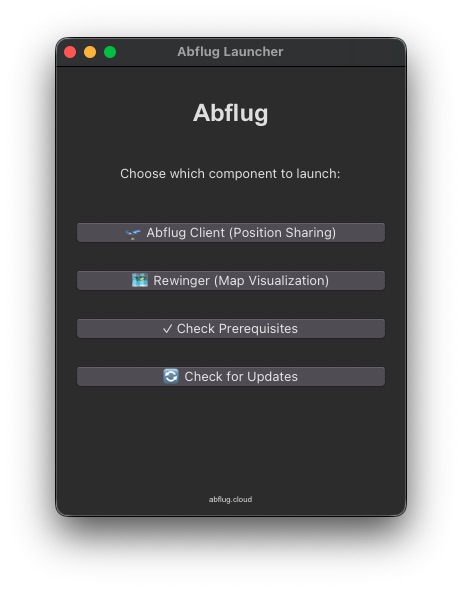
Going top to bottom:
requests, tkintermapview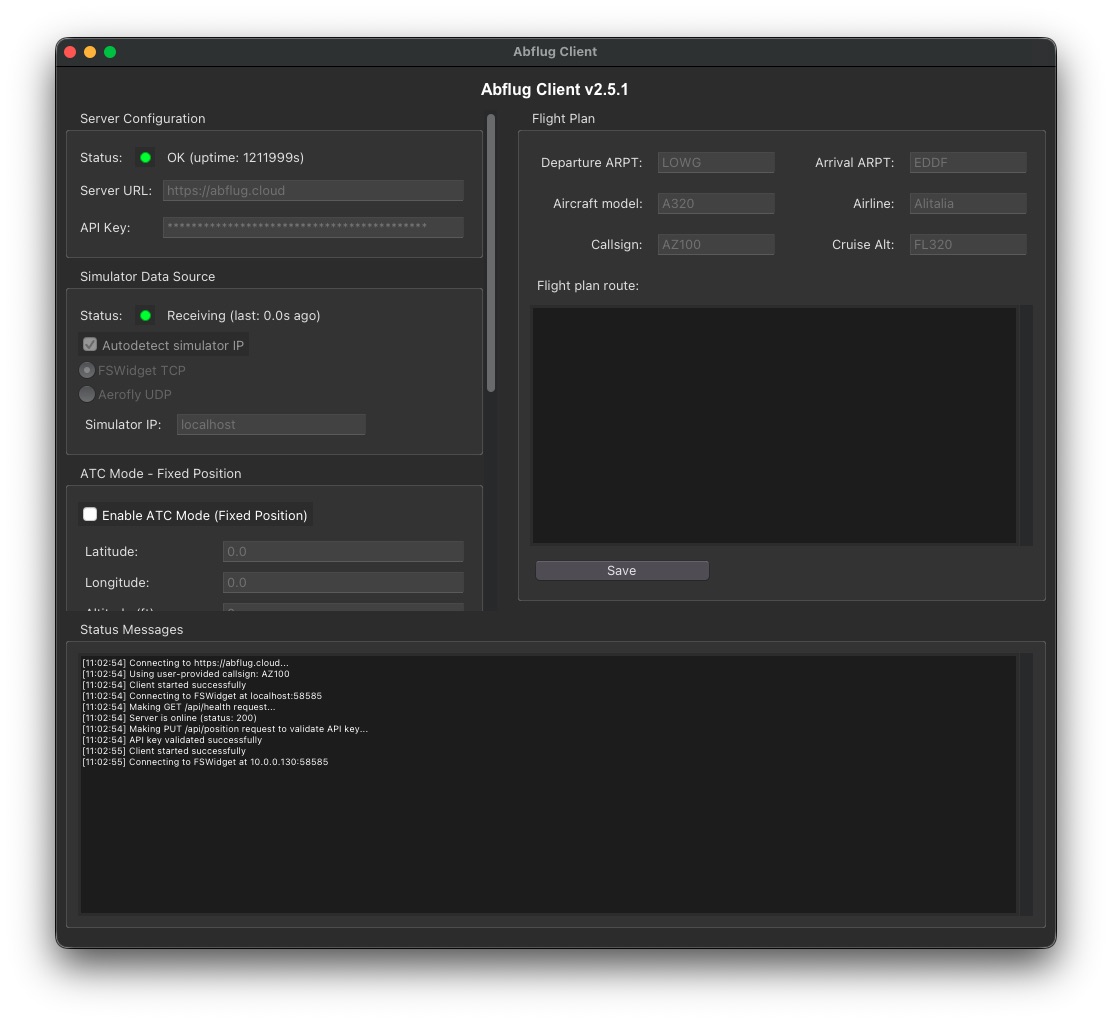
Here you need to put your API key from the website. Alternatively, you can edit abflug.json.example to be called abflug.json and add the API Key in the configuration file. The system will take the API key from the file and autopopulate it.
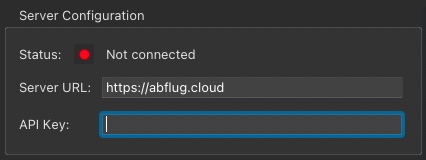
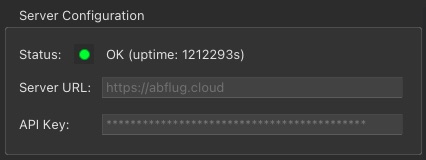
These are the settings necessary to connect to your Flight sim.
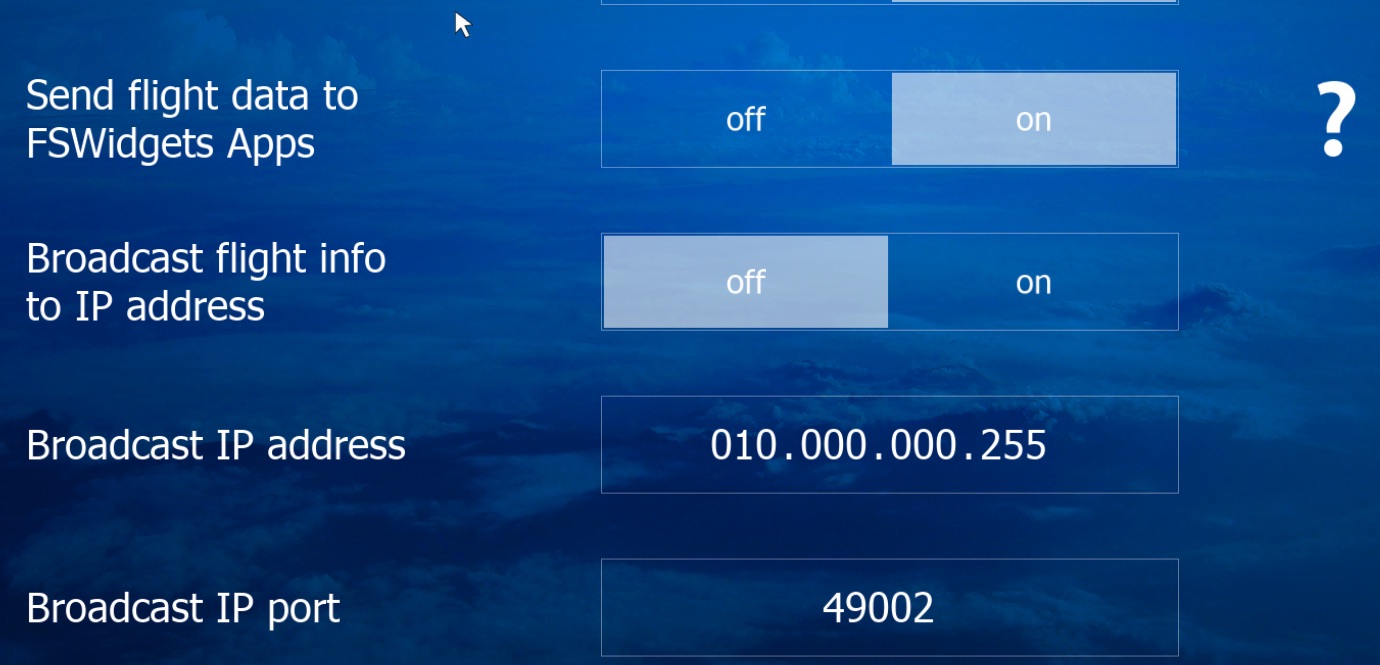
Currently supported methods – choose one:
Note: You do not need to have FSWidgets App installed. It's just the name of the protocol.
In Aerofly you need to select one of them – enabling both will cause issues on priorities on the data source.
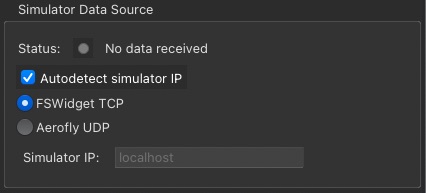
Once you have decided which connection method, you need to set up the Simulator Data source:
How it looks successfully connected:
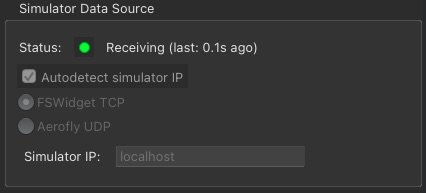
Known Limitation: Please ensure that Aerofly is up and running before you connect to it.
This is a special mode that allows you to be an observer (e.g. a Tower). You can't send your flight position if this mode is selected.
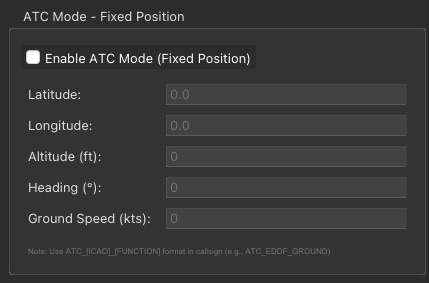
Once you toggle it, the Simulator Data Source will be locked:
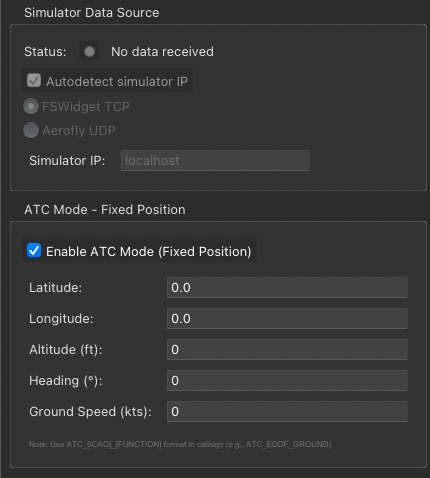
You can then add the Latitude and Longitude to broadcast your position on the network.
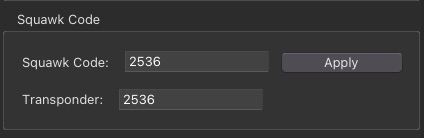
Here you can set a squawk code as instructed by your ATC.
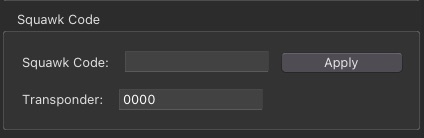
You need to write your squawk code and press "Apply" so it will be taken over:
Here you can add a webhook to Discord. The Client will detect takeoff and landing, and send this information to a webhook.
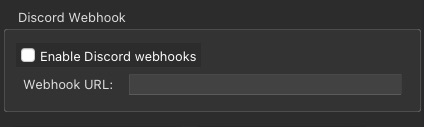
Note: For this functionality to work correctly, you need to have a valid ICAO Airport code in the flightplan for Departure and Arrival.
Here you can fill out your flightplan.
Minimum required fields indicated with *
Press "Save" to confirm your flightplan.
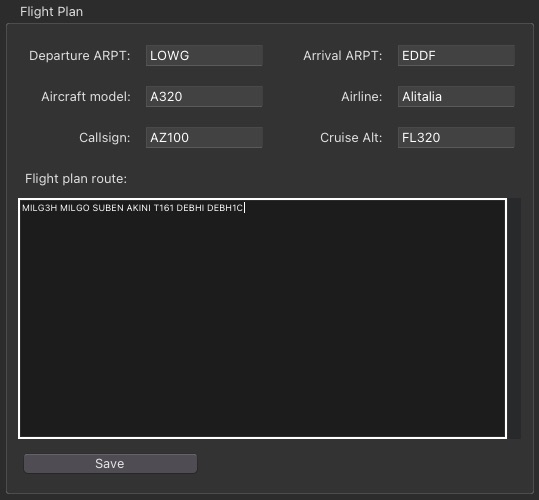
If you decide to use ATC Mode:
EDDF)Ground)ATC_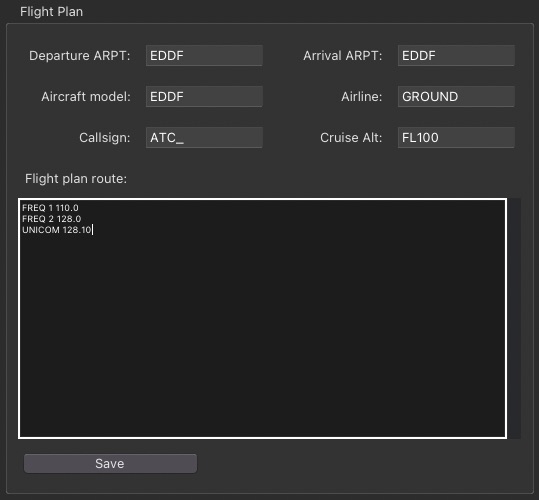
Press "Save" to confirm your flightplan.
Once you scrolled all the way down, you see the connection button.

Please press it. It will send all the information to the Abflug Network and manage the connection to the sim. If successful, you should see the button change to:

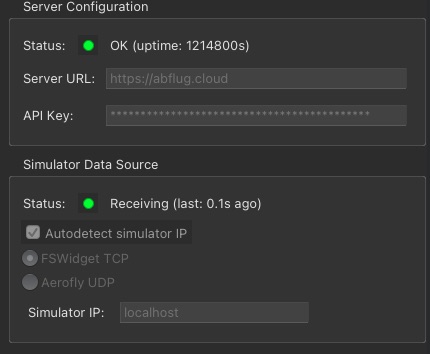
If you scroll up, you will see the two green dots for Server and Sim status:
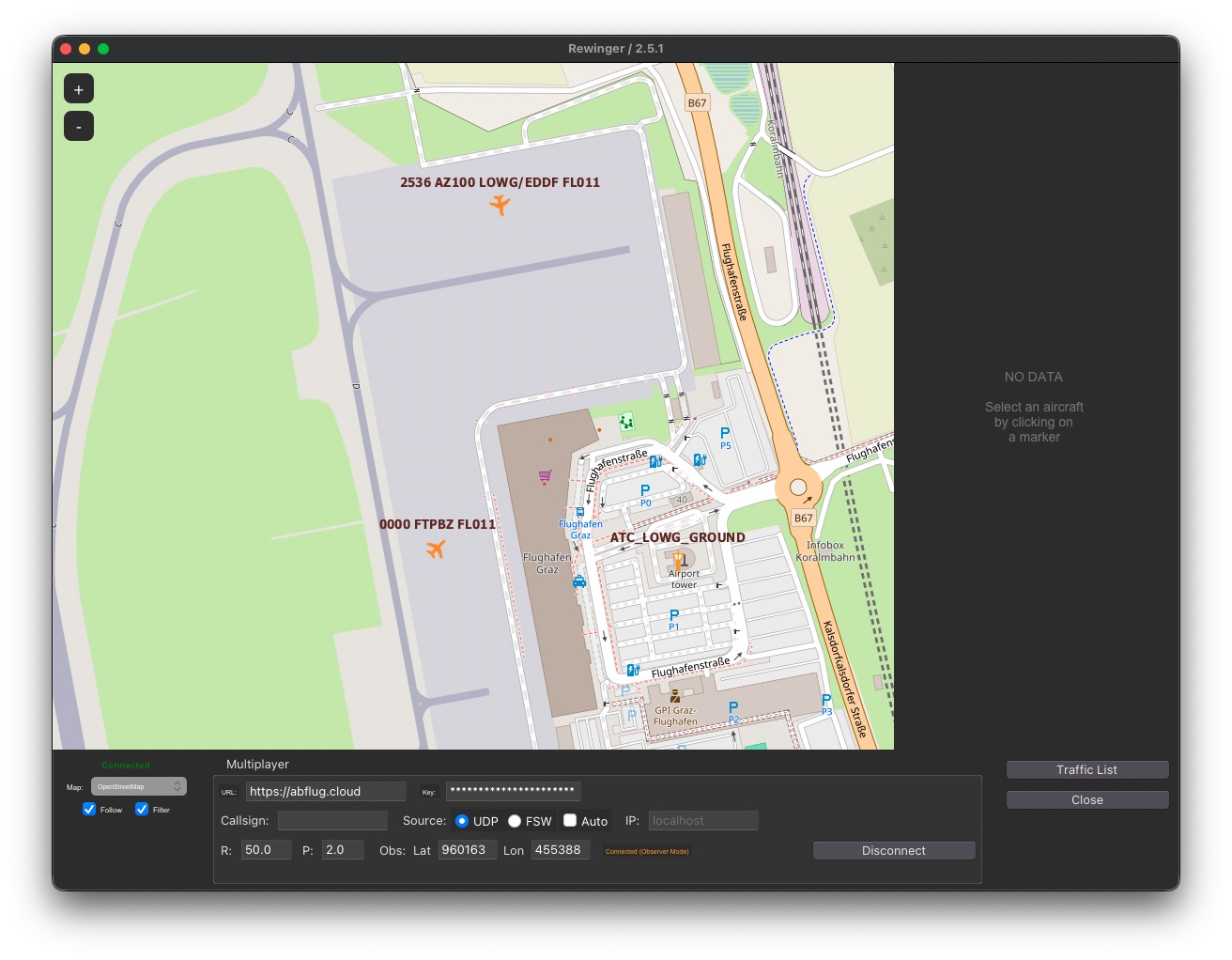
Rewinger is the application that allows you to see the other planes as if you were on FlightRadar24.
Note: When using the Unified App, you can click on the little Map tab and can skip the setup.
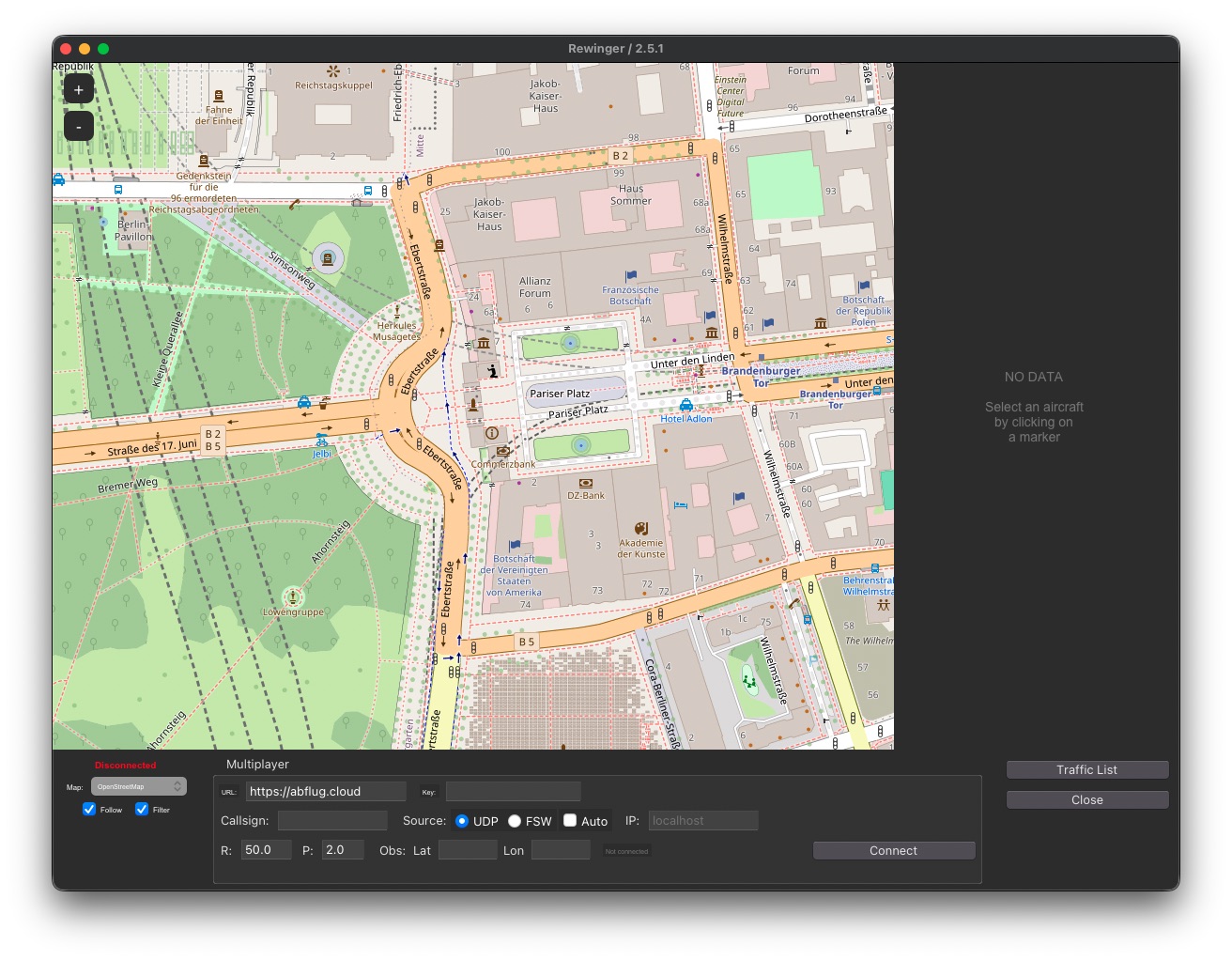
As per the client, you need to add your API key and the connection to your sim (same rules apply as per the Abflug Client):
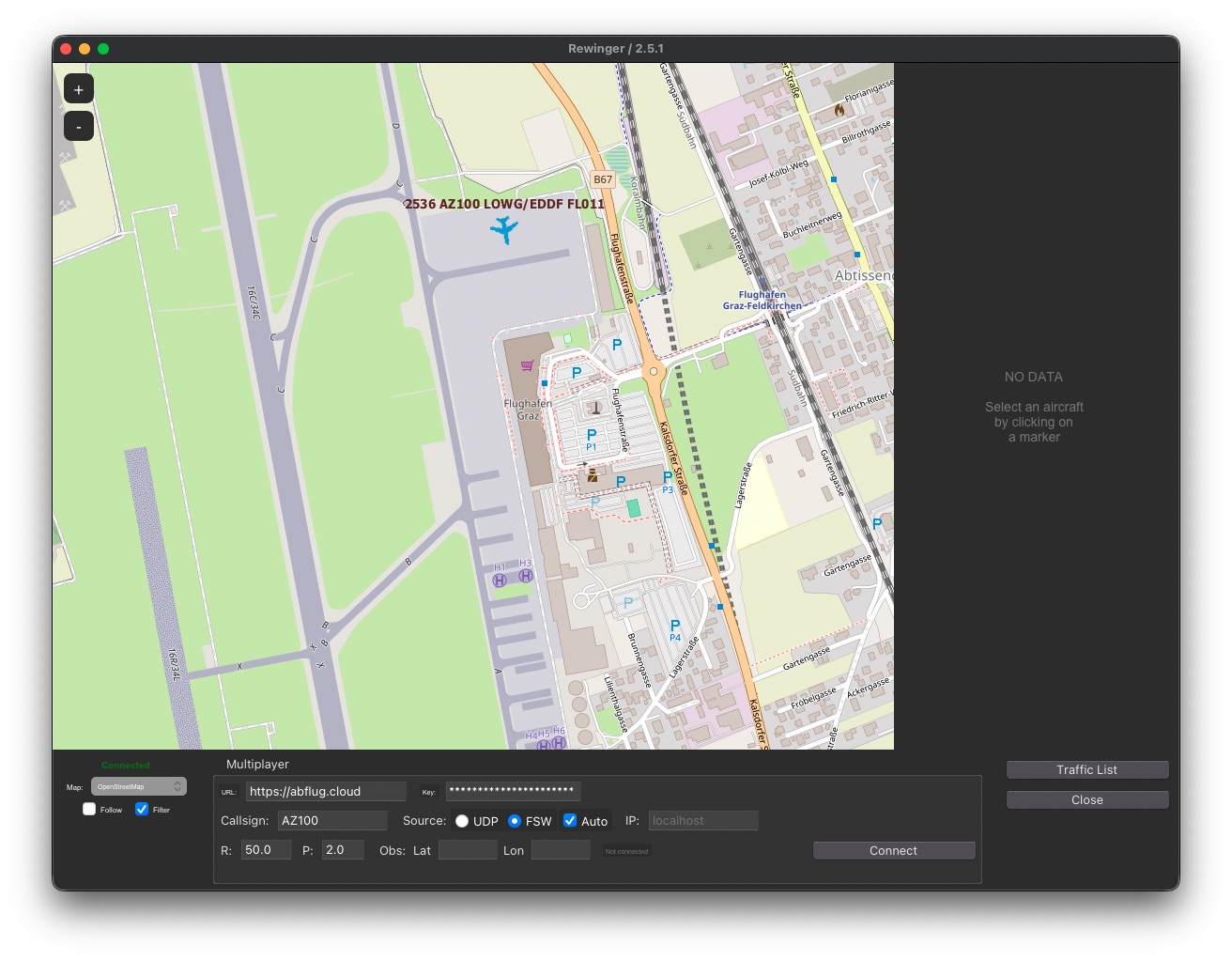
Note: Blue airplane is your own sim. Orange are the other players!
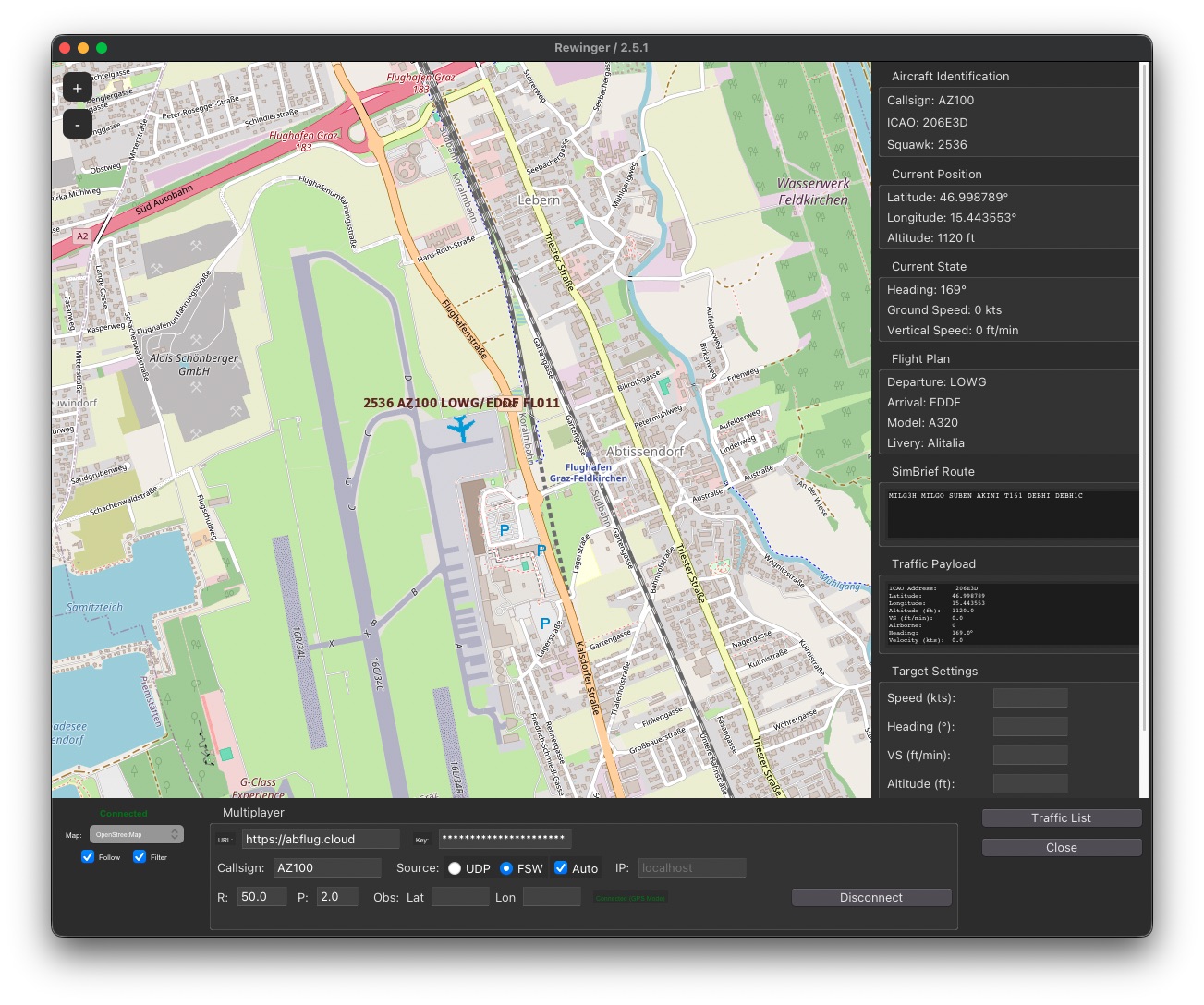
To see the information from the other players (or your own) you click on the airplane. On the right side a list of information will appear.
Example with ATC online:
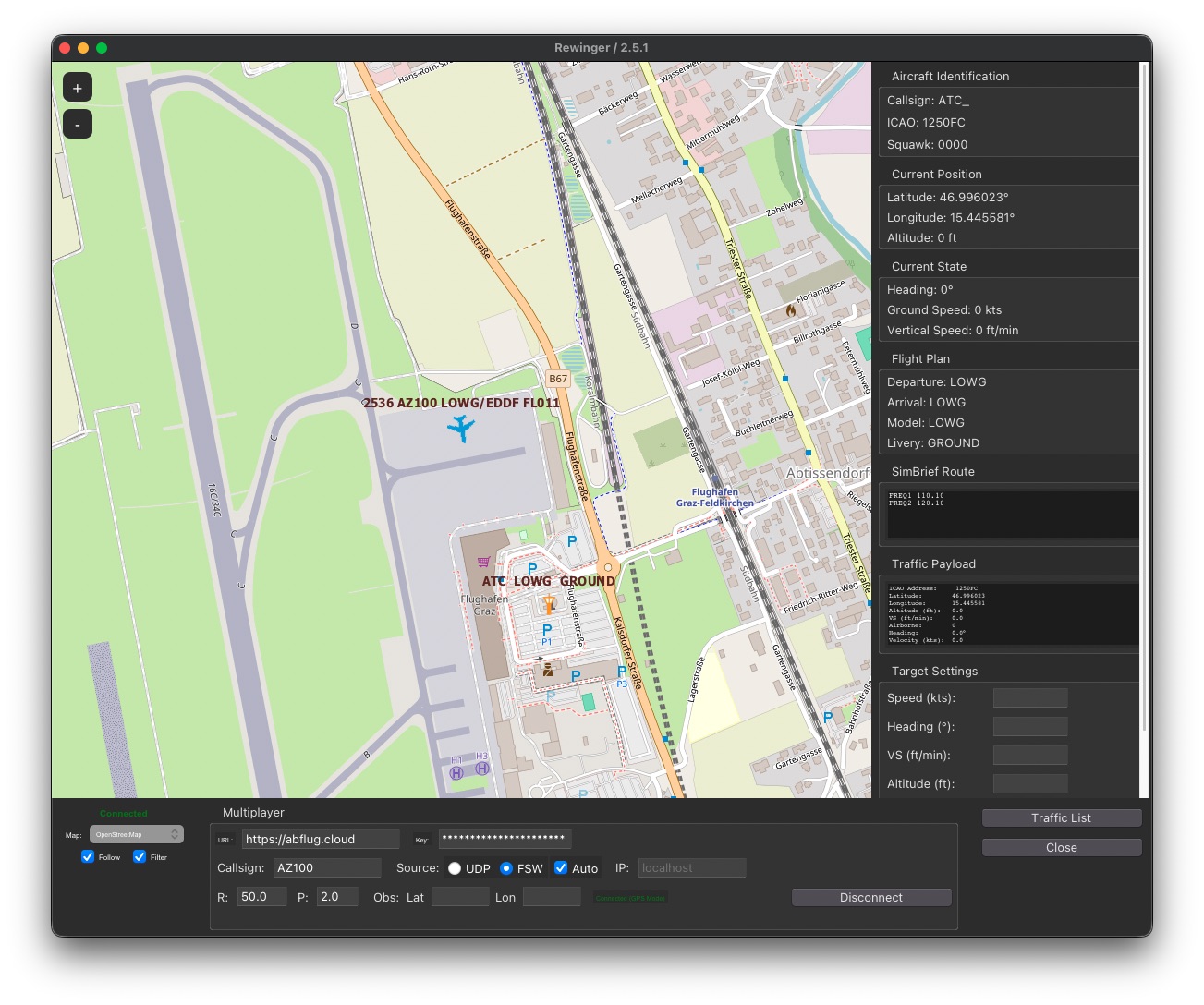
To deselect an airplane, you just press the key "ESC".
Version 2.4 introduced tools to help ATC players. You can now click on an airplane and "set" a target of Speed, heading, V/S or altitude.
Once a target is set, you will see next to the Airplane info a symbol and asterisks:
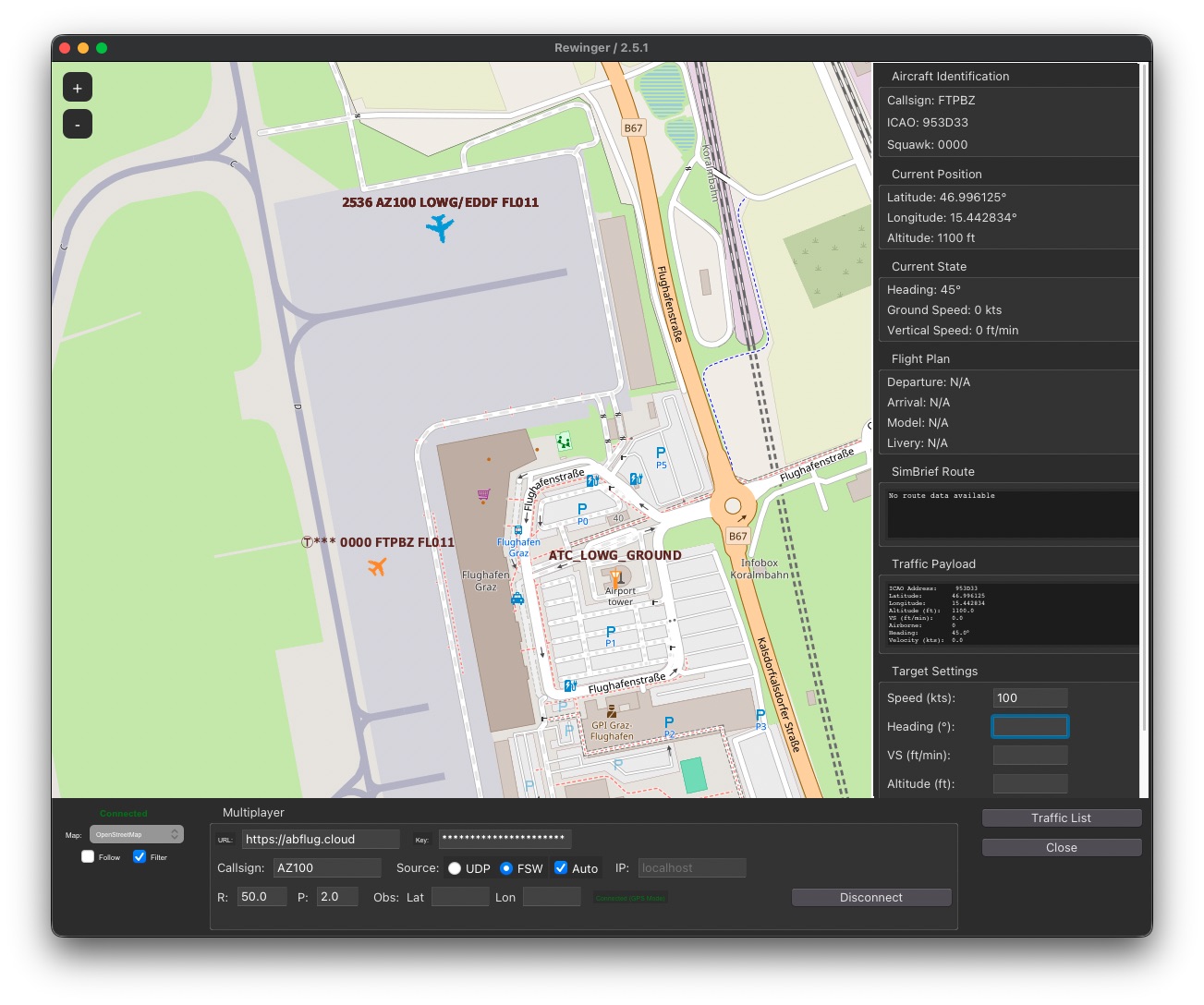
Note: The targets are visible only to the user who sets them. They are not broadcasted. You can set targets to yourself or other airplanes (e.g. instructions from ATC).
To play as ATC or just observe, you need to be sure no Sim data is coming towards Rewinger. To make sure, you can select the "non active" communication method.
Once this is set, you need to set your observer place with an approximate Lat and Lon.
If successful, you will see an orange confirmation message: "Connected (Observer mode)":

Scripts run from a downloaded zip are often blocked. To avoid that:
Unblock before extracting:
Right‑click the downloaded zip → Properties → check Unblock → OK, then extract.
Sometimes some stale data messes up with the detection, especially if you changed location from one airport to the other via the location setting in Aerofly.
Workaround:
This issue happens when the phone refuses to allow Abflug Client to request data (Connection refused, error 10061).
Workaround: